Preview image. Unlock full-res
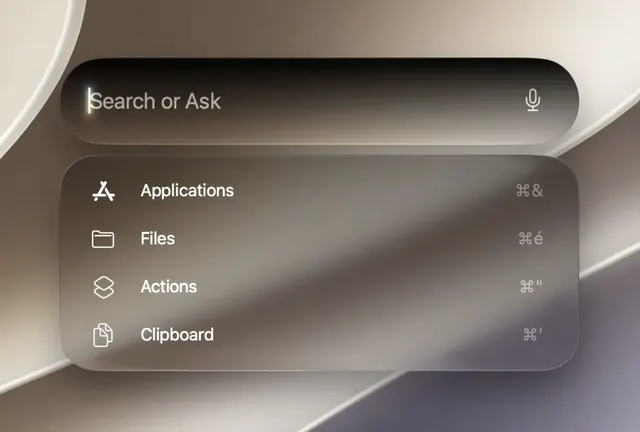
A soft-glass command palette UI shows a search field above a rounded menu of four categories with shortcut hints.
Summary
A soft-glass command palette UI shows a search field above a rounded menu of four categories with shortcut hints.
Visual description
The screen shows a large rounded search bar at the top with the text “Search or Ask” and a microphone icon on the right. Beneath it is a translucent rounded panel listing Applications, Files, Actions, and Clipboard, each with a simple line icon on the left and keyboard shortcuts aligned to the right. The whole composition sits on a blurred warm neutral background with soft highlights and shadows.
Key takeaway
Use strong blur, translucent surfaces, and oversized rounded containers to make a command palette feel tactile and premium. Keep hierarchy simple: one primary input, then a compact list of high-frequency categories with subtle shortcut affordances.
Reuse notes
This works well for search-centric productivity tools, onboarding hubs, or AI assistants where users need fast navigation. It is especially effective when the interface should feel calm, modern, and lightweight rather than dense or technical.