Preview image. Unlock full-res
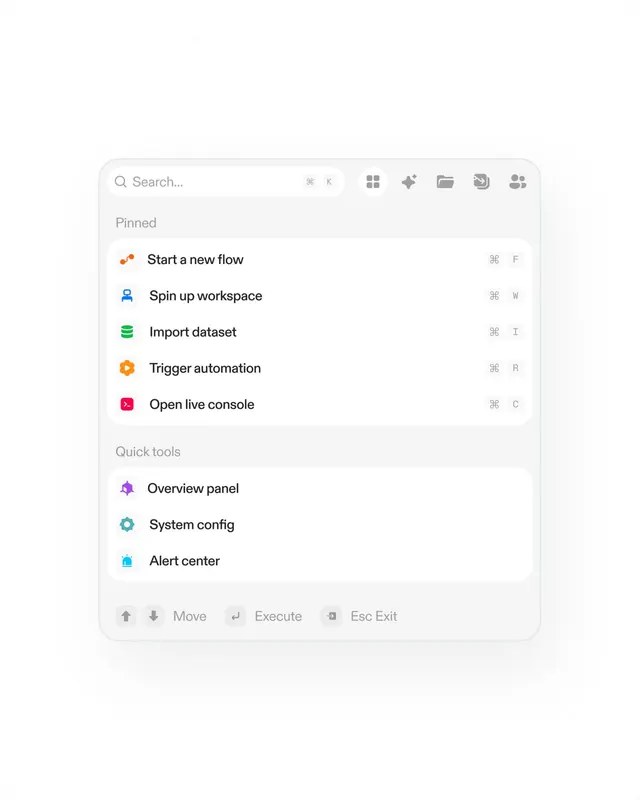
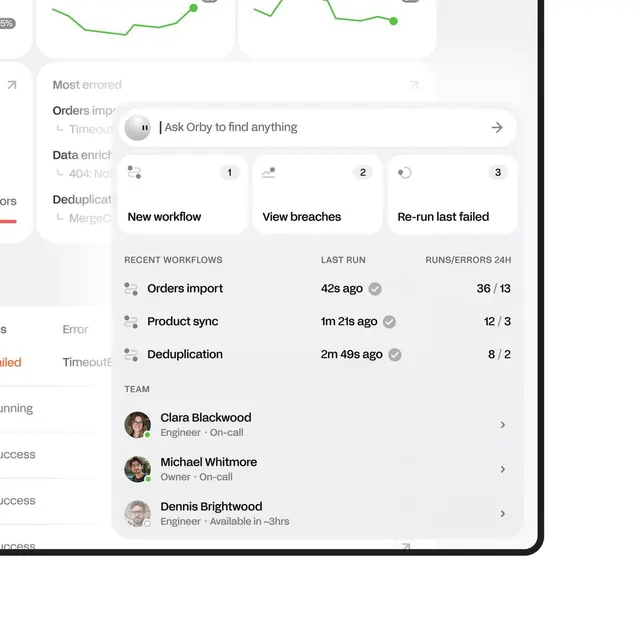
Minimalist command palette interface with icon-labeled action shortcuts, search input, and keyboard shortcut callouts on off-white background.
Summary
Minimalist command palette overlay featuring a searchable action menu with icon-labeled shortcuts, keyboard accelerators, and contextual quick tools for a developer platform.
Visual description
A centered rounded-rectangle modal on a clean white background. Top section: search input with placeholder "Search..." and six small action icons (grid, rotate, folder, image, people) aligned right. "Pinned" section below lists five primary actions: "Start a new flow" (orange lightning icon), "Spin up workspace" (blue person icon), "Import dataset" (green database icon), "Trigger automation" (orange gear), "Open live console" (red play icon). Each line shows the action name with keyboard shortcuts (F, W, I, R, C) right-aligned in light grey. A "Quick tools" divider below with three secondary options: "Overview panel" (purple bell icon), "System config" (teal gear), "Alert center" (blue briefcase). Bottom bar shows navigation shortcuts: arrow icons, "Move", "Execute", "Esc Exit" in light grey text.
Key takeaway
Search-first interface with clear visual hierarchy using icons and color to distinguish action categories. Keyboard shortcuts always visible (right-aligned) builds muscle memory. Pinned/quick-tools split makes frequent actions immediately accessible. Consistent icon treatment (outlined, monochromatic) keeps the focus on content. Generous padding and whitespace in modal design prevents cognitive overload in a utility context.
Reuse notes
Strong reference for developer tools, productivity platforms, and automation software. Command palette pattern works across many product categories (design tools, terminals, IDEs, CMSes). The pinned-actions paradigm helps power users jump to frequent workflows. Light palette with subtle colour coding keeps accessibility high. Works best with 5-7 pinned actions and clear, verb-based action names.
More like this


Keep what you find
A free account saves references to boards and can send you a weekly email of picks based on what you save.
To see every result, go Pro.