Preview image. Unlock full-res
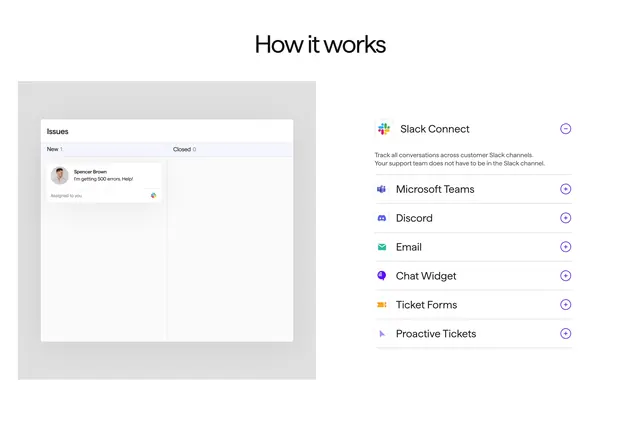
Split How it works section with a product Issues UI mockup on the left and an expandable channel list accordion on the right starting with Slack Connect open.
Summary
Process explainer pairing a grey Issues dashboard showing a Slack-sourced ticket with a right-side accordion listing omnichannel sources, Slack Connect expanded first.
Visual description
Left-aligned How it works headline above a two-column layout. Left grey panel shows Issues UI with New 1 and Closed 0 tabs, one card from Spencer Brown reading I'm getting 500 errors. Help!, assigned to you label, and Slack logo on the card. Right column lists channels with brand icons: Slack Connect expanded with minus icon and copy about tracking conversations without support being in-channel; collapsed plus rows for Microsoft Teams, Discord, Email, Chat Widget, Ticket Forms, and Proactive Tickets.
Key takeaway
Linking a live inbox mockup to an accordion of sources shows both output and input in one section. Expanding the primary channel by default teaches the workflow immediately. Plus-minus circles give clear affordance without heavy accordion chrome.
Reuse notes
Strong for omnichannel SaaS explaining ingestion paths. Mockup must reflect real product UI. Accordion interaction implies others expand on click; not visible in still.